





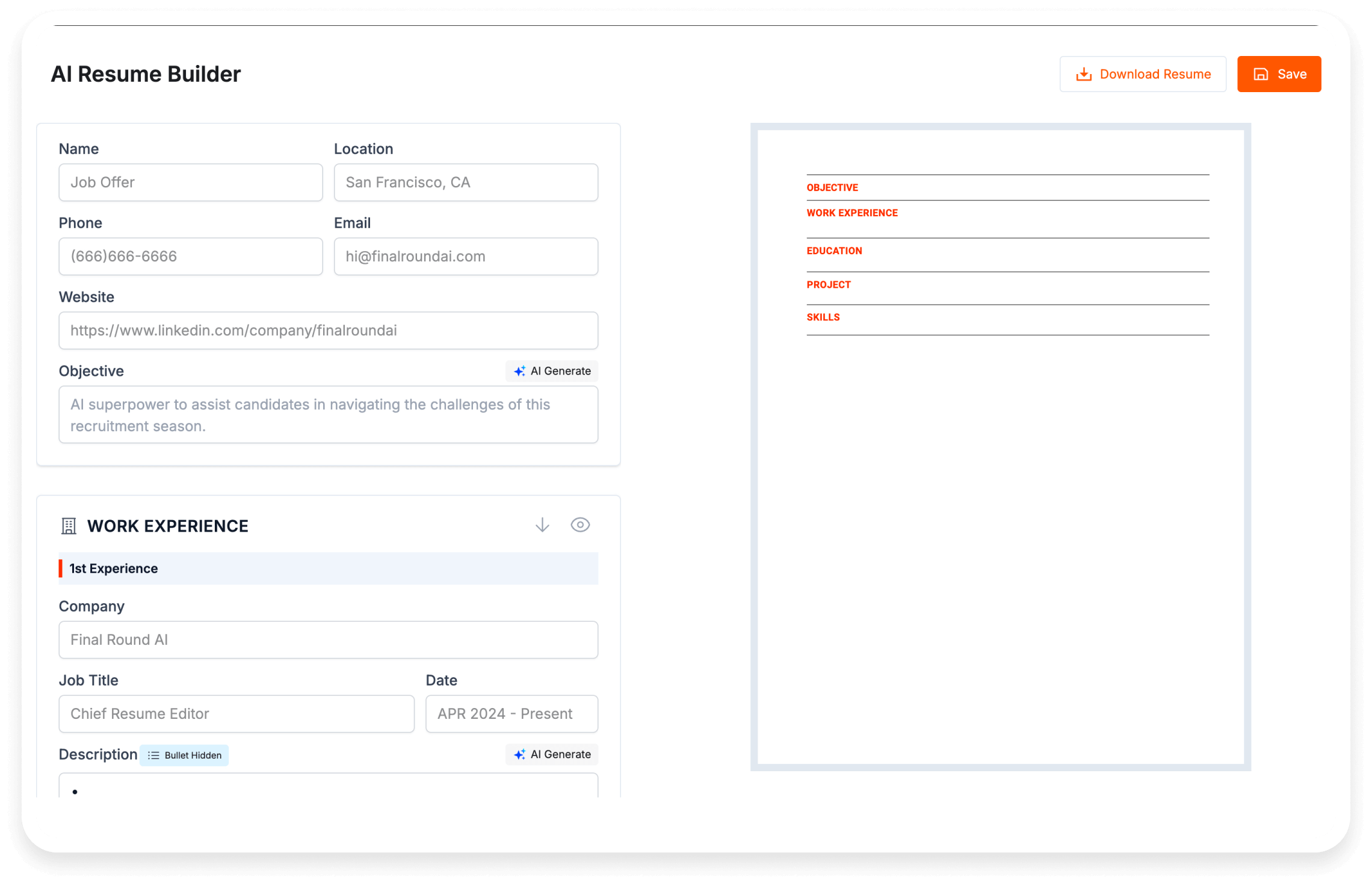
AI Resume Builder
Build a humanized, ATS-optimized resume in minutes. Paste a job description, let our AI extract keywords, and generate a tailored resume with multiple templates, PDF export and live preview.
Price: Free
Application Category: AI Utilities
4.9
AI Resume Builder
Tailor Your Resume to Any Job (ATS-Friendly)
Build a professional, human-sounding resume in minutes. Paste any job description, let the AI extract the key skills, and auto-suggest strong bullets, keywords and templates designed to pass Applicant Tracking Systems (ATS).
Why use the AI Resume Builder?
The AI Resume Builder is made for busy job-seekers who want resumes that read like they were written by a real person — but optimized for machines too. Instead of rewriting your profile for every application, paste a job description once and the tool helps you:
- Identify the most important keywords and skills from the job description automatically.
- Suggest tailored skills and summary lines that act as placeholders and hints while you edit.
- Polish descriptions into achievement-focused bullets with metrics-friendly language.
- Preview multiple templates live and export a print-ready PDF.
Explore more tools at TEX — Technical Expert Xplain. Browse job listings at LinkedIn Jobs.
Tool overview — what’s inside the builder
Below is a walkthrough of every option and control inside the resume builder and what it does.
1. Job Description (Paste & Analyze)
What it is: A single textarea where you paste the full job description (JD) from an employer or job board.
How it works: Click Analyze Job Description. The AI extracts the top 8–12 keywords and required skills, returning a comma-separated list. Those keywords are stored as jobKeywords and used to:
- Pre-fill the Skills field placeholder with suggested skills (dynamic hints).
- Prioritize phrasing in the Summary and Experience sections to match the JD’s language.
- Suggest ATS-friendly keywords for the final resume export.
Why paste the JD first? It’s the fastest way to get a resume targeted to an actual posting — the AI uses the job’s language to shape your content, which improves match scores and conversion.
2. Personal Info
Fields: Full Name, Headline/Role, Email, Phone, Location.
Tips: Use a concise headline (e.g., “Senior Web Developer — React, Node.js”). Keep contact details up-to-date; avoid links or images in the headline field.
3. Summary
Short paragraph that sits at the top of the resume. Use the AI chips to:
- Polish — rewrite into one professional paragraph.
- Expand — create 2–3 sentences highlighting impact and achievements.
- Condense — produce a single sharp sentence for compact resumes.
- ATS Optimize — rephrase to include keywords (from jobKeywords) and keep the language machine-friendly.
4. Education
Structured inputs: Degree, Institution, Start/End years, Description/Achievements.
Each entry has AI actions:
- AI Polish — condense the description into a crisp sentence.
- AI Bullets — convert long descriptions into concise achievement bullets.
- Remove — deletes the entry.
5. Experience
Structured inputs: Job Title, Company, Start/End, Description. You can add multiple roles and reorder them (if your UI supports drag or simple up/down controls).
AI options per entry:
- AI Polish — produce an accomplishment-focused paragraph.
- AI Bullets — convert into 2–4 metric-driven bullets (the AI will prefer numbers if they exist).
- ATS — add job-specific keywords and short phrasing to pass automated screening.
6. Skills & Keywords
Comma-separated skills. After JD analysis this field’s placeholder changes into quick hints, for example: Try including: React, Node.js, REST, AWS.
AI chips:
- Suggest Keywords — extract and add keywords from the current content.
- Enrich Skills — suggest related or senior-level skill names.
- ATS Keywords — generate an 8 keyword list optimized for the target role.
7. Template Selector & Preview
Templates offered:
- Classic — serif header, simple clean layout (best for corporate roles).
- Modern — compact two-column header for quick scanning (tech roles).
- Creative — lighter backgrounds, works for design roles (use sparingly for ATS).
- Sidebar / Professional — left sidebar for skills + contact, right for experience (great for recruiters who scan skills first).
Live preview updates as you type so you can compare templates right away.
8. Enhance All (AI)
A one-click function that sequentially polishes summary, experience entries and education entries, and extracts ATS keywords for skills. It will overwrite fields — the tool asks for confirmation first.
9. Download / Export
Options:
- PDF Export — optimized for printing and job portals (A4, margins set for proper print layout).
- Plain Text / Copy — copy-paste friendly output for LinkedIn or email body.
Export settings may include orientation, margin and image quality (if you include a photo).
10. Accessibility & Privacy
This builder is designed to be keyboard-friendly and responsive for mobile devices. Privacy: job descriptions and entered data are used only for processing AI suggestions — you should inform users if any data is logged or sent to third-party AI services (OpenAI or custom API). Display a short privacy note near the Analyze button.
How to use the AI Resume Builder — step by step
- Paste the Job Description into the top box and click Analyze Job Description. The AI extracts keywords and updates your Skills placeholder.
- Fill in Personal Info and add your Experience and Education entries.
- Use AI chips on each field to polish or turn descriptions into bullets. Use ATS mode to make the text machine-friendly.
- Choose a template from the preview pane and adjust styling if needed.
- Click Enhance All to auto-refine everything, then Download PDF to export your resume.
Pro tip: Keep one “master” resume for your core skills and use the builder to quickly generate tailored versions by pasting different job descriptions.
Benefits & when to use this tool
- Save time: Produce a targeted resume quickly for each application.
- Higher ATS match: Using the job’s own language increases automated match scores.
- Humanized writing: AI suggestions focus on accomplishments and readable sentences, not robotic lists.
- Flexible export: PDF for applications, text for LinkedIn, or internal sharing.
Editing & optimization tips
- Whenever possible, add numbers to experience bullets (e.g., “Reduced load time by 30%”).
- Use the ATS AI chip to check whether a field includes critical keywords.
- For design roles, preview the Creative template but keep a Classic copy for ATS submission.
- Limit the Summary to 2–3 sentences for most job applications.